Are you a music lover who enjoys jamming to Spotify while chatting with friends on Discord? Well, picture this: you’re vibing to your favorite tunes, but your Discord status fails to showcase what song you’re currently grooving to. Annoying, right? Wondering why Spotify isn’t showing on Discord and how to fix the Spotify not showing on Discord issue? Don’t fret, I’ve got your back!
We’ve all mastered the art of playing music in Discord and discovered how to create a music bot on Discord. But now, it’s time to unveil the secret behind Spotify’s vanishing act on this platform and equip you with some handy troubleshooting tips. No matter if you’re jamming on your reliable PC, Mac, Android, or iOS device, I’ve got you covered from all angles!
Now, let’s dive into the probable causes of Spotify not showing on Discord. Sometimes, it’s just a temporary hiccup that can be fixed with a simple device or app restart. Fear not, I will swiftly guide you through the steps to resolve the “Spotify not showing on Discord” conundrum in a jiffy.
In This Article
Why is Spotify Not Showing on Discord?
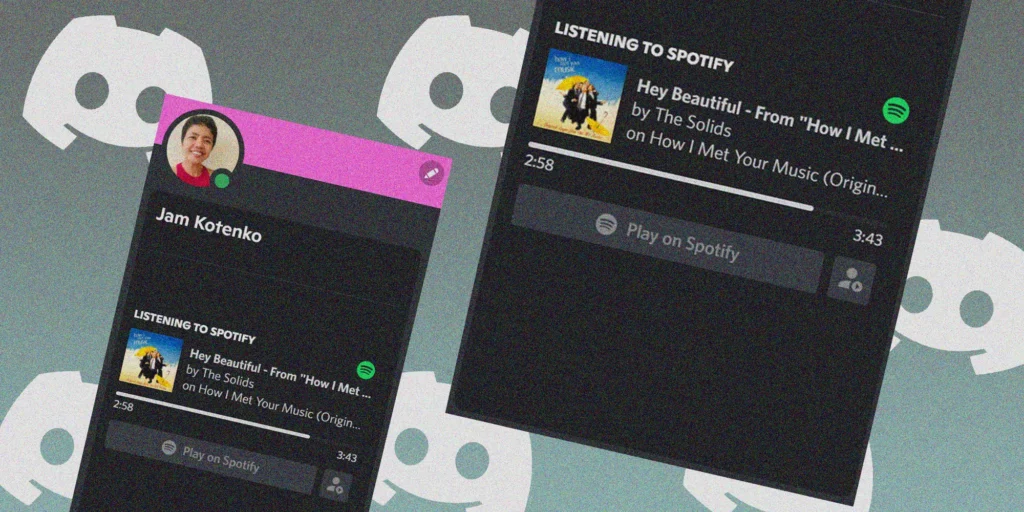
Encountering the Spotify not showing on Discord issue can be quite frustrating, especially when you’re eager to share your favorite tunes or participate in a lively listening party. But what could be causing this hiccup? Let’s explore some common reasons behind the “Spotify not showing on Discord” issue:
01. Outdated Spotify or Discord app: Compatibility issues and bugs can arise if either of the apps is running an outdated version.
02. Unlinked Spotify and Discord accounts: To enable Spotify Rich Presence on Discord, it’s crucial to link your Spotify account to your Discord account. Check the settings of both apps to ensure proper linkage.
03. Private Spotify activity: If your Spotify activity is set to private, neither Discord nor anyone else can view the songs you’re listening to.
04. Unstable or slow network connection: An unreliable or sluggish internet connection can hamper communication between Spotify and Discord, resulting in delays or errors.
05. Device or app glitch: Sometimes, unexpected glitches occur, and a simple device or app restart may do the trick.
06. Discord server issues: If multiple users are experiencing the same problem, it’s possible that there’s an issue with Discord’s servers.
07. Discord status settings: If your Discord status is set to “Away” or “Do Not Disturb,” your Spotify activity may not be displayed as intended
How to Fix the Spotify Not Showing on Discord Issue?
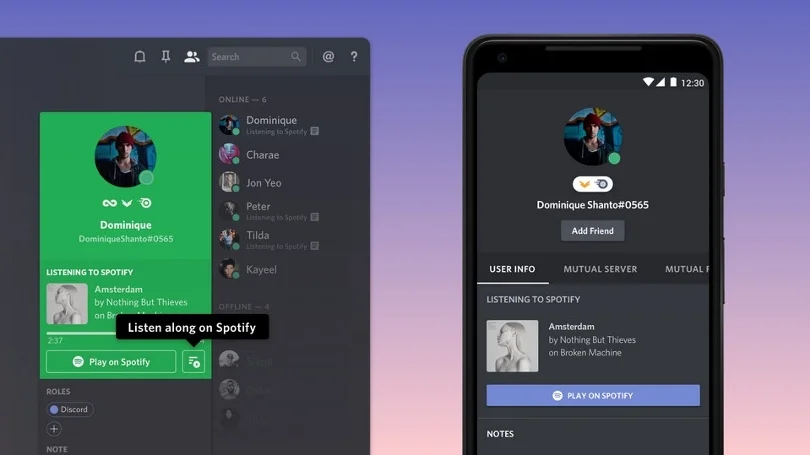
So, now you’re in the know about why the whole Spotify not showing on Discord thing happens. Lucky for you, I have got some super simple solutions to tackle the Spotify not showing on Discord issue. Check them out:
01. Update your Spotify or Discord app: Make sure you’ve got the freshest versions of both apps on your device. Head to the app store or their official websites for any available updates.
02. Link your Spotify and Discord accounts: Go to the settings in both apps and connect your Spotify account to your Discord account. Just grant the necessary permissions to enable Spotify Rich Presence on Discord.
03. Tweak your Spotify privacy settings: Visit your Spotify account page and hit up “Edit Profile.” Under the “Social” section, make sure your activity is set to public or friends only. You can also toggle the “Show what I listen to on Discord” option to your liking.
04. Double-check your network connection: Ensure that your internet connection is steady and speedy while using Spotify and Discord. Give switching between Wi-Fi and mobile data a shot, or try restarting your router or modem.
05. Give your device or app a reboot: Sometimes, a simple restart can clear out any sneaky cache or temporary files messing with Spotify’s display on Discord. Close and reopen both apps or power your device off and on again.
06. Peek at Discord’s server status: If others are facing the same problem, it could be a server hiccup. Keep tabs on Discord’s official website or Twitter account to check the status of their servers.
07. Adjust your Discord status settings: Pop into your Discord profile and tap that status icon. Set it to “Online” or “Idle” to ensure your Spotify activity gets showcased. If it’s on “Away” or “Do Not Disturb,” things might not show up as intended.
Wrapping Up
That covers all the ins and outs of the “Spotify not showing on Discord” issue. I hope this article has been helpful in resolving the problem and allowing you to groove to your music with friends on Discord. If you have any questions or ideas, drop me a comment below.
Remember to swing by Path of EX regularly for more guides and tips on Discord. We’ve got a treasure trove of useful content waiting for you.