
Snapchat is essentially a camera app. To enjoy the platform a user needs to give access to use the device’s camera. But recently many users have complained about why is Snapchat camera zoomed in, the issue is causing issues in the proper functioning of the Snapchat app. But you don’t have to worry. In this article, I will tell you, why is my Snapchat camera zoomed in and How to Fix Snapchat Camera Zoomed In Issue.
Snapchat camera zoomed-in causes issues in clicking the perfect shot. In a way, you won’t be able to get snap the way you wanted it. So, without further ado, let’s dig in to know about the possible causes of why your Snapchat camera is zoomed in and how to fix the Snapchat camera zoomed-in issue.
In This Article
How to Fix Snapchat Camera Zoomed In Issue?
You can easily solve the problem of the Snapchat camera zoomed-in issue and enjoy the Snapchat camera as it is supposed to be by following the below-mentioned guide.
Method 1: Fix Snapchat Camera Zoomed In Issue By Checking For a Stable Internet Connection
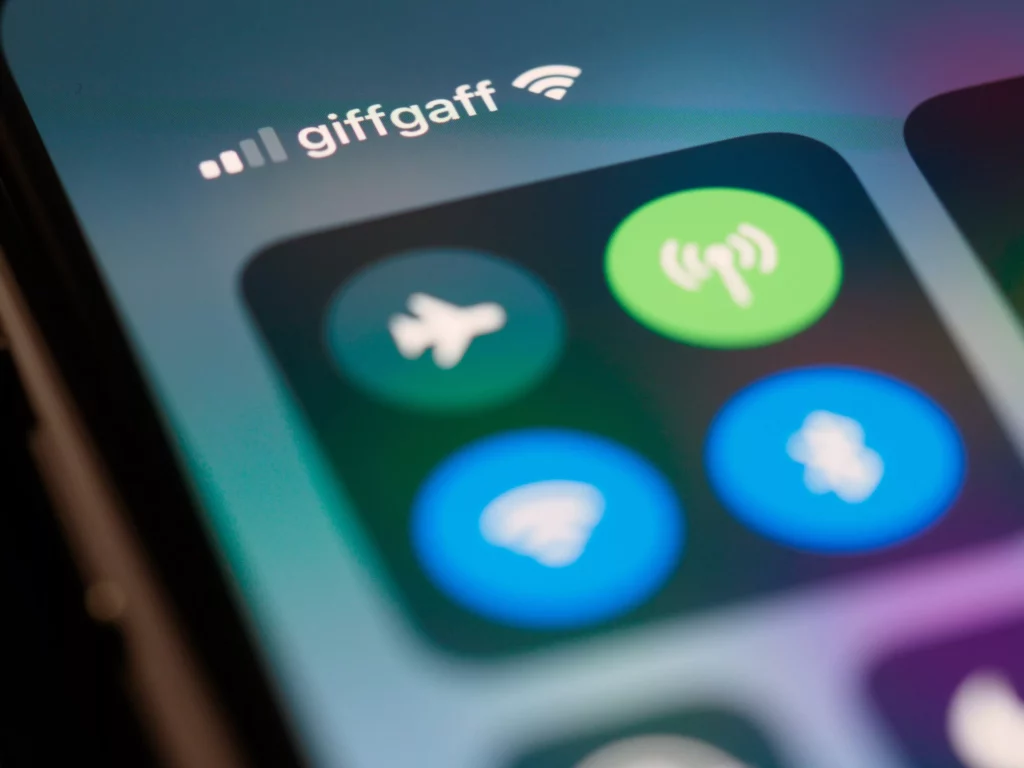
Poor internet connection is one of the main issues of temporary glitches on Snapchat. Whenever you face any issue on Snpachat, firstly make sure that you are connected to a stable internet connection. Try switching from WiFi to cellular data or vice versa and check if the issue is resolved at your end.
Also, read Snapchat Not Working: Know the Reasons & Fixes!
Method 2: Fix Snapchat Camera Zoomed In Issue By Restarting the Snapchat App
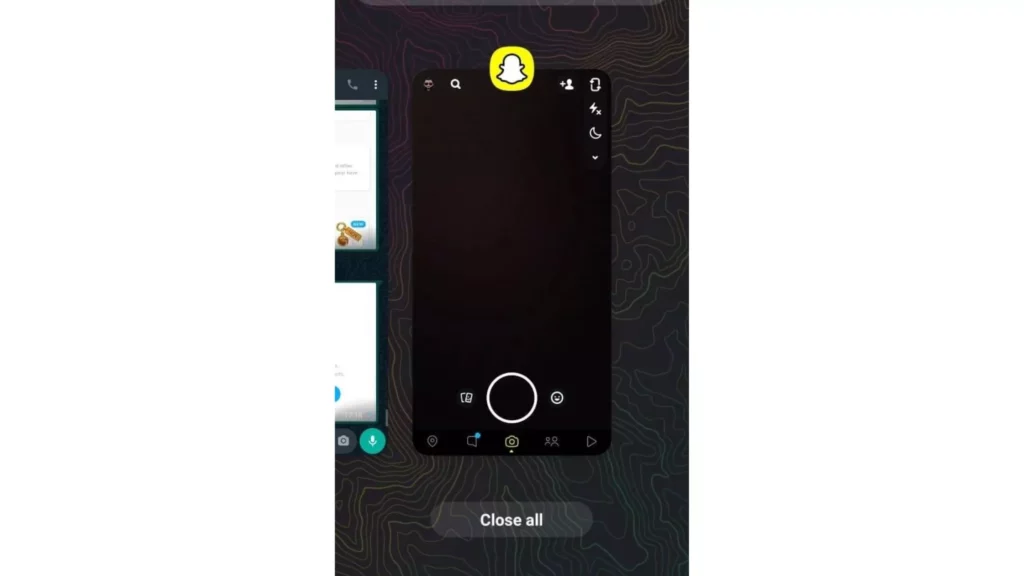
The next thing you can do to fix your issue with the zoomed-in camera on Snapchat is to forcefully shut the Snapchat app and then try to reopen it again. Make sure when you restart the Snapchat app, that the Snapchat app is not running in the background.
Also, read Snapchat Support Code SS06: How to Fix It? (100% Working)
Method 3: Fix Snapchat Camera Zoomed In Issue By Updating Snapchat App
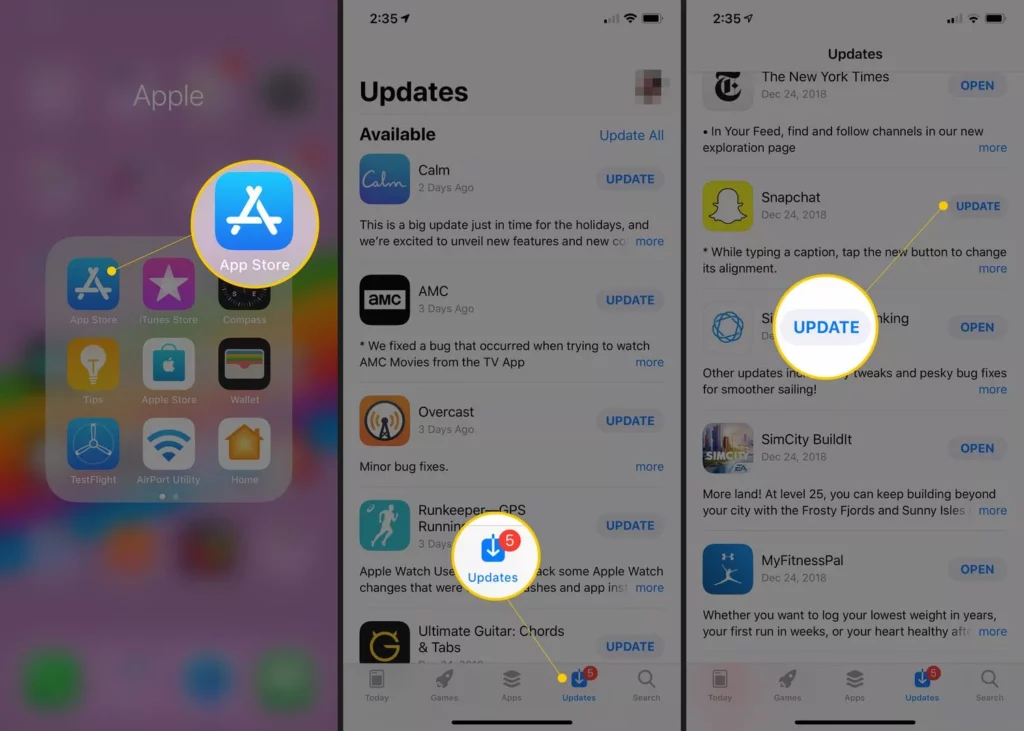
Another reason why you might be having issues with the Snapchat camera is that you are using the outdated version of Snapchat. So, always make sure that your Snapchat app is updated to the latest version. In order to update the Snapchat app, follow the given steps.
- Head to the play store or the app store of your iOS or Android device.
- In the search bar, type Snapchat.
- Now update the app to the latest version.
Also, read Why Does My Snapchat Keep Crashing? 7 Easy Fixes For The Glitch!
Method 4: Fix Snapchat Camera Zoomed In Issue By Cleaning the Snapchat App Lens Cache
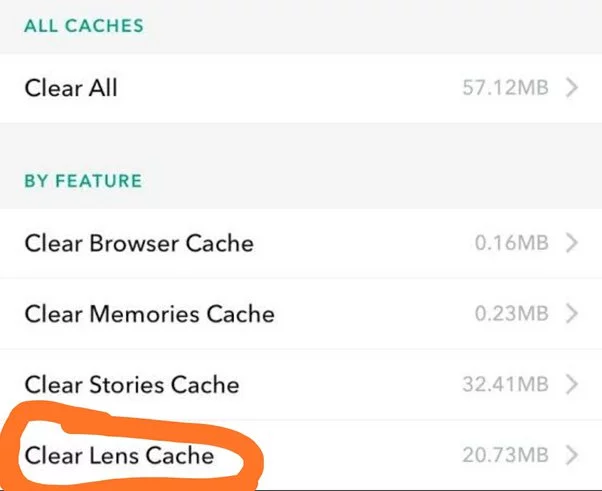
Try cleaning the Snapchat lens cache in order to fix the issue of the Snapchat camera zoomed in. To do that, follow the given steps.
- Launch the Snapchat app on your device.
- Click on the profile icon that is located in the top left corner of the screen.
- Select the gear icon and head to the settings page.
- Now, scroll down the page and select on Clear Lens Data.
- Tap on Clear.
Also, read How to Fix Snapchat Support Code C14B in 2023 (Solved)
Why is My Snapchat Camera Zoomed In?

The most common cause of Snapchat camera zoomed-in is because there is an issue with your phone’s camera or you haven’t given access to Snapchat to use your device’s camera. The other possible cause is that your settings are not adjusted properly. In the below-mentioned list, I have given reasons of why your Snapchat camera is zoomed in.
- Excessive Snapchat app cache.
- Camera settings issue.
- Temporary bug in the Snapchat app.
- Outdated Snapchat app.
Also, read Snapchat Notifications Not Working? Try These 6 Quick Fixes
Watch How to Fix Snapchat Camera Zoomed In Issue
Wrapping Up
Snapchat is known for its user-friendly updates to keep up with the needs of its young audience. But sometimes the temporary errors on the app hinder the proper functioning of the platform and it can be quite frustrating. To know, the possible causes of why your Snapchat camera is zoomed in and How to Fix Snapchat Camera Zoomed In Issue, read the entire article and share it with your friends. Visit Path of EX for all the trending stuff!
Frequently Asked Questions
How to Fix Snapchat Camera Zoomed In Issue?
1. By Cleaning the Snapchat App Lens Cache.
2. By Updating Snapchat App.
3. By Restarting the Snapchat App.
How to give camera permissions to Snapchat?
Navigate to the Settings app on your device>Scroll down and head to the app section>Tap on Snapchat>Toggle on permission for Camera and you are done!
How to know if the Snapchat server is down?
You can find if the Snapchat server is down on the Downdetector website, which gives real-time updates about the outages on popular websites.